How do I use the VetVantage dashboard?
Answer:
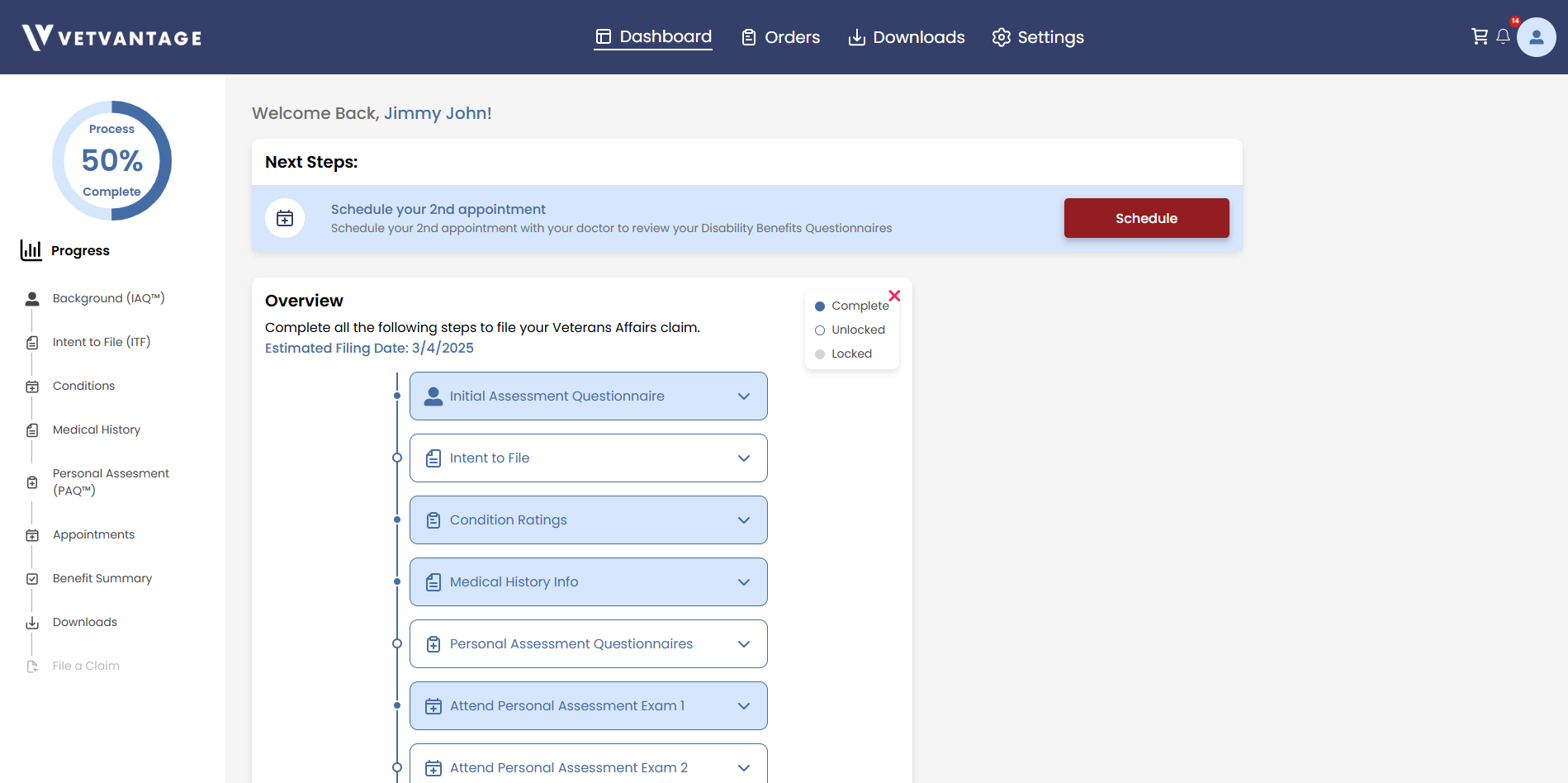
The dashboard is the central hub that guides clients through the VetVantage process. It provides a clear overview of completed, current, and upcoming steps, ensuring a smooth and structured experience.
Using the VetVantage Dashboard
The VetVantage dashboard is designed to help clients navigate the claims process efficiently. It provides easy access to essential tools, guides users through necessary steps, and keeps track of progress. Below is a breakdown of the key sections within the dashboard:
1. Sidebar Navigation
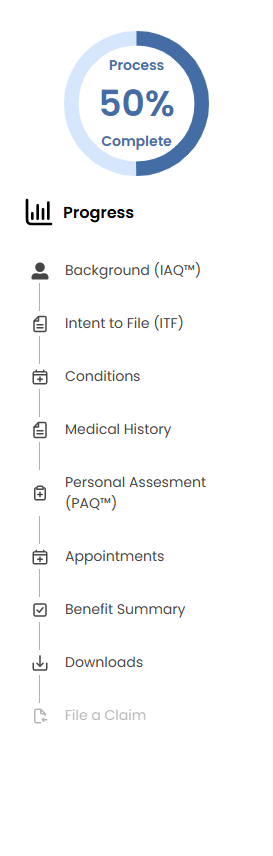
Located on the left-hand side, the sidebar provides a structured menu of steps related to the claims process. It allows users to quickly access different sections, such as:
- Background (IAQ™): Initial assessment questionnaire
- Intent to File (ITF): Declaration of intent to file a claim
- Conditions: Managing and updating medical conditions
- Medical History: Uploading and reviewing medical records
- Personal Assessment (PAQ™): Completing personal assessment questionnaires
- Appointments: Scheduling and tracking medical evaluations
- Benefit Summary: Reviewing claim progress and results
- Downloads: Accessing important documents
- File a Claim: Submitting the final claim
The sidebar also includes an overall progress percentage which lets you know how far along you are with the VetVantage process. At 100% you will have all the required documentation to provide evidence for your claim and file for an increase with the VA.

2. Next Steps Section
At the top of the dashboard, the "Next Steps" section highlights the most immediate action required. This section ensures clients stay on track by clearly indicating the next task to complete, such as scheduling an appointment or filling out a form.

3. Top Navigation Bar
The top navigation bar provides quick access to account-related sections that are not directly part of the claims process. It includes options for:
- Dashboard: Returning to the main dashboard
- Orders: Viewing past and pending service requests
- Downloads: Accessing important documents
- Settings: Managing account preferences and information
4. Overview Section
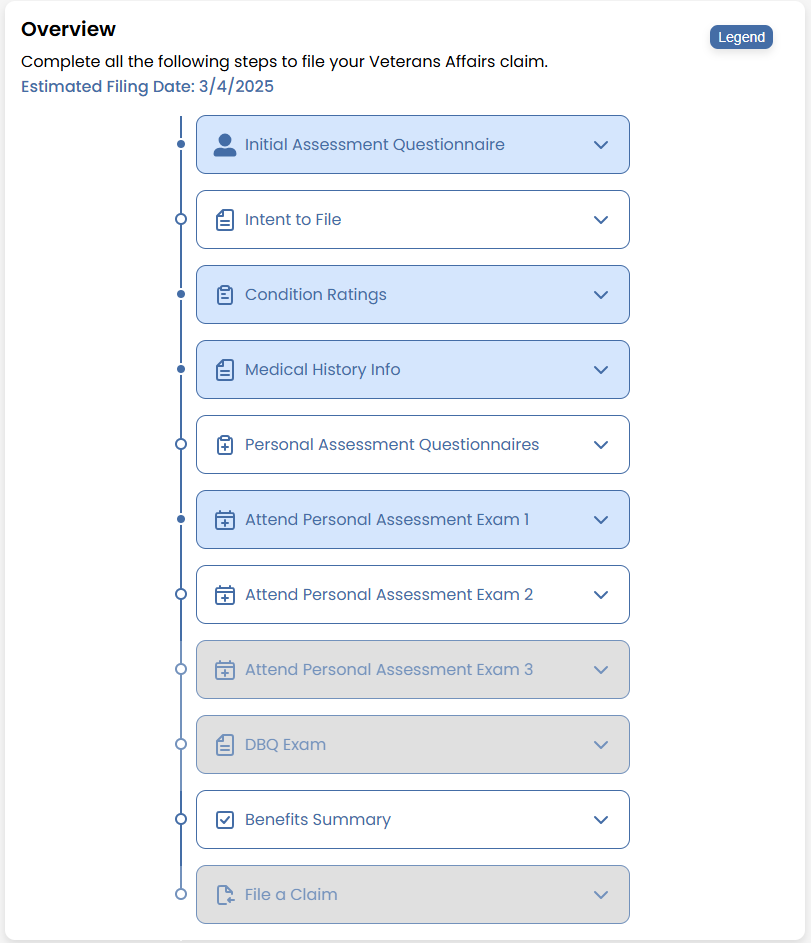
The overview section presents a visual roadmap of the client’s progress. It categorizes each step into three statuses
- Complete (blue): Steps that have been successfully finished
- Unlocked (gray): Steps that are currently available to complete
- Locked (light gray): Steps that will be accessible later in the process
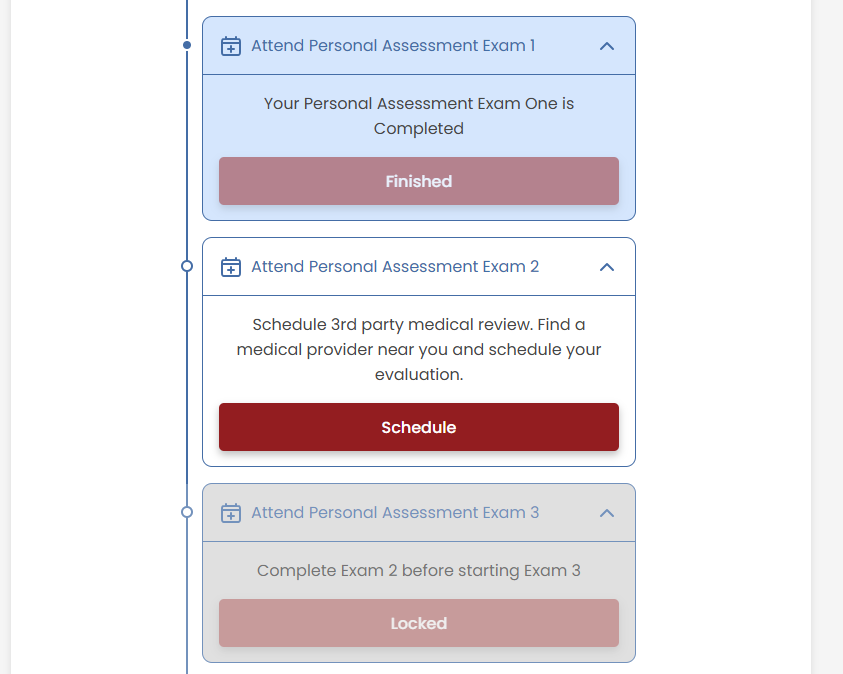
Each separate step can be expanded to show a brief description of the specific step and a button which will navigate you to that specific page to handle this step as needed. You can still use the Next Steps section for this as well.
There is also a display of the estimated filing date, providing an expected timeline for claim submission.
By utilizing the VetVantage dashboard, clients can efficiently navigate their claim journey, ensuring they complete every required step in a structured and timely manner.
Related Articles
Why are some steps locked?
Understanding Locked Steps in the VetVantage Process The VetVantage process follows a structured flow where each step must be completed before the next becomes available. This ensures that all necessary requirements are met in the correct order, ...What are "Next Steps" and how do I follow them?
Understanding and Following "Next Steps" The "Next Steps" section highlights the immediate action required in the VetVantage process. It dynamically updates as you progress, ensuring you always know what to do next. It serves as a personalized guide ...How did I get locked out of the IAQ?
Answer: You might get locked out of the IAQ for a few reasons, depending on the answers you provided during the assessment. Please reach out to support so someone can help you with this issue. Reasons You May Be Locked Out The VetVantage system ...How Can I Get the Address for My In-Person Appointment?
Answer: By going to the appointment details page in your VetVantage account Steps to Find Your Appointment Address: 1. Confirm Your Appointment is Approved Check your VetVantage notifications (in-app, email, or text) Ensure your appointment has been ...VetVantage FTF Client Workflow — Internal KB
Overview This article explains the proposed VetVantage FTF client workflow based on Joseph’s walkthrough beginning around 31:29 of the meeting transcript. The workflow covers account creation, intake routing, veteran verification, form completion, ...