How do I get my snapshot?
Answer:
To get your snapshot, log into your VA.gov account, navigate to your benefits summary, and take a screenshot using your device. To take a screenshot follow the directions below.
Steps to Get Your Snapshot
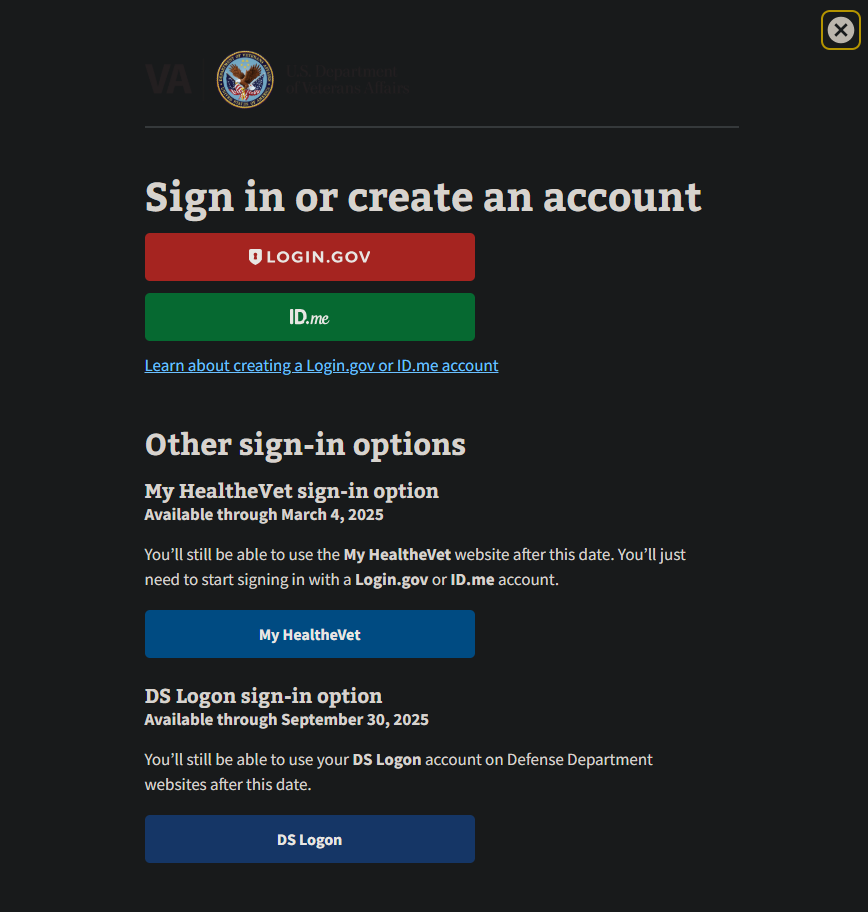
1. Sign In to Your VA.gov Account
- Go to VA.gov.
- Click Sign In and choose your login method (ID.me, Login.gov, DS Logon, MyHealtheVet).
- Once logged in, navigate to the Disability Compensation or Benefits Summary section.
- Locate the information you need for your snapshot
- Include the name ad percentage of all conditions you wish to get an increase for using VetVantage.
2. Taking a Screenshot on Different Devices
Once you have the necessary information displayed on your screen, follow these steps to take a screenshot:
Windows Computer
- Snipping Tool (Windows 10 & 11):
- Press Windows Key + Shift + S.
- Select the area of the screen you want to capture.
- The screenshot is saved to the clipboard—paste it into a document or save it manually
- Print Screen (Windows 7, 8, 10, 11)
- Press PrtScn to capture the entire screen (paste into Paint or Word).
- Press Alt + PrtScn to capture only the active window.
- Press Windows + PrtScn to save the screenshot automatically in Pictures > Screenshots
Mac / iOS/ Android
- Full-Screen Capture: Press Command + Shift + 3.
- Partial Screen Capture: Press Command + Shift + 4, then drag to select the area
- Capture a Specific Window: Press Command + Shift + 4 + Spacebar, then click the window
- Screenshots are saved to the Desktop by default
- iPhone (Face ID Models): Press Side Button + Volume Up at the same time
- iPhone (Home Button Models): Press Home Button + Power Button together
- Android (Most Devices): Press Power + Volume Down at the same time
- Screenshots are saved in the Photos (iPhone) or Gallery (Android) app under Screenshots
3. Uploading Your Snapshot
Once you've taken your screenshot, you can upload it directly to VetVantage by following the in-app instructions or attaching it in the required section.
This ensures that your VA benefits snapshot is documented properly, helping to streamline your process with VetVantage.
Related Articles
How to get you SnapShot
Answer: To get your snapshot, log into your VA.gov account, navigate to your benefits summary, and take a screenshot using your device. To take a screenshot follow the directions below. Steps to Get Your Snapshot 1. Sign In to Your VA.gov Account Go ...How did I get locked out of the IAQ?
Answer: You might get locked out of the IAQ for a few reasons, depending on the answers you provided during the assessment. Please reach out to support so someone can help you with this issue. Reasons You May Be Locked Out The VetVantage system ...What is the Initial Assessment Questionnaire (IAQ)?
Understanding the Initial Assessment Questionnaire (IAQ) The Initial Assessment Questionnaire (IAQ) is the first and most crucial step in the VetVantage process. It gathers essential information to assess whether a veteran qualifies for assistance in ...How do I complete the IAQ?
Steps to Complete the IAQ 1. Access the IAQ Log into your VetVantage account. Navigate to the Initial Assessment Questionnaire (IAQ) section. 2. Answer All Questions Provide accurate information regarding your VA benefits, current rating, dependents, ...How Do I Get My Medical Documents?
You can access and request your medical documents through the VA website: VA Medical Records Request Accessing Your Medical Records via VA Blue Button The VA Blue Button is a tool that allows veterans to securely view, download, and share their ...